Enabling the New Microsoft Teams
Learn to enable the new public preview version of Microsoft Teams. This short article covers how to configure a teams admin policy to allow a select set of people in your organization to enable the public preview.
On March 27th Microsoft finally released the new version of the Teams Client in Public Preview.
If you’ve been suffering with dropped, calls, notifications not quite working right, the new Teams client might help you out.
However, there are some features which don’t work yet for full details on the current development state of the new Teams client you can read more here:
New Microsoft Teams – Microsoft Adoption
Do NOT enable the preview client for all users, as of the time of writing, 4/3/2023 there are key features around phone calls, and call groups, that will not work as intended. This may cause entire groups to not receive calls.
Creating a custom Update Policy
In order to enable the Teams Preview for specific users, you’ll need to have permissions of at least “Teams Admin”.
You’ll want to browse to the Teams Admin Portal:
https://admin.teams.microsoft.com/
Once in the portal, on the left hand side navigation bar, expand “Teams” and select “Teams Update Policy”. Then select “add”.
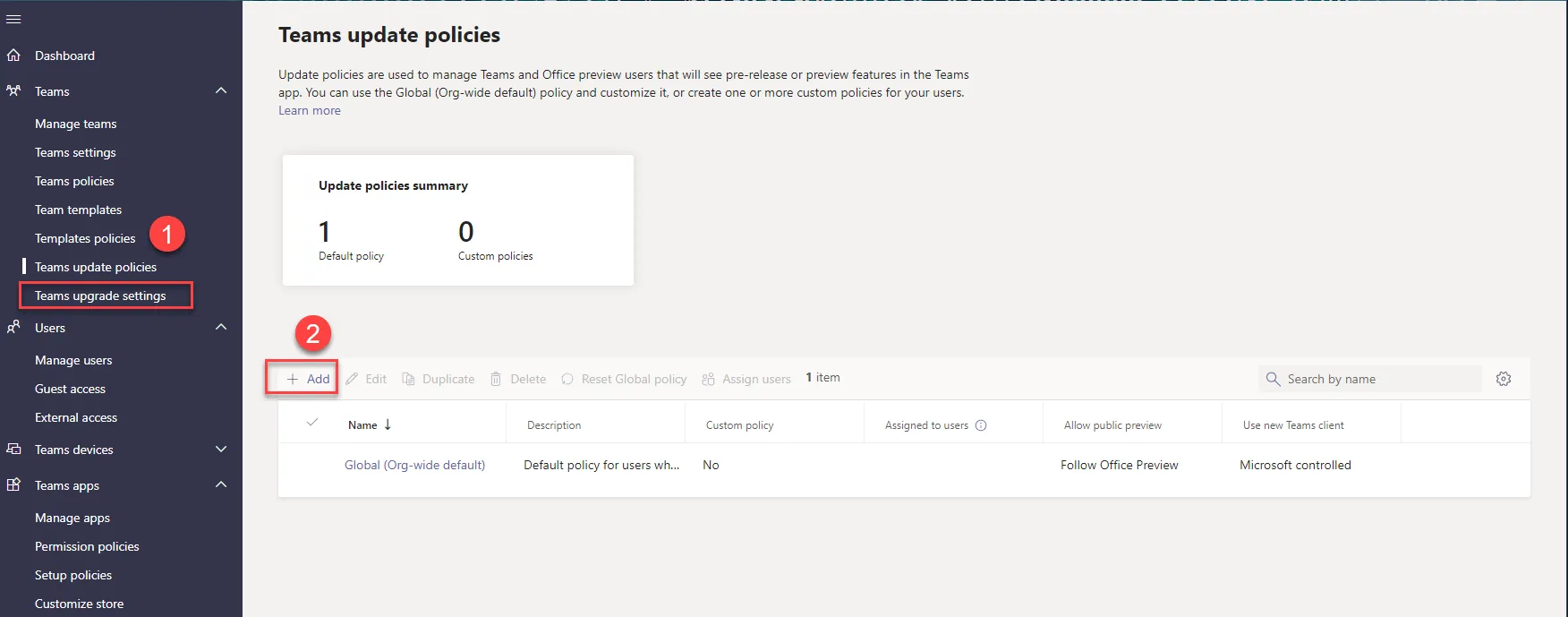
This will open a flout on the right hand side. Give your policy a meaningful name. I’ve chosen “Enable New Teams”
You’ll then want to set the “use new teams client” to “users can choose” this will allow users who have the policy to switch back and forth between versions of Teams if certain feature don’t work as expected.
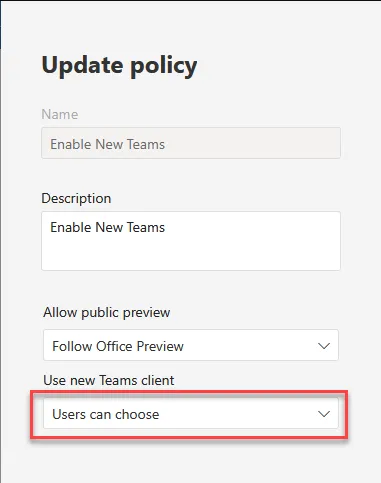
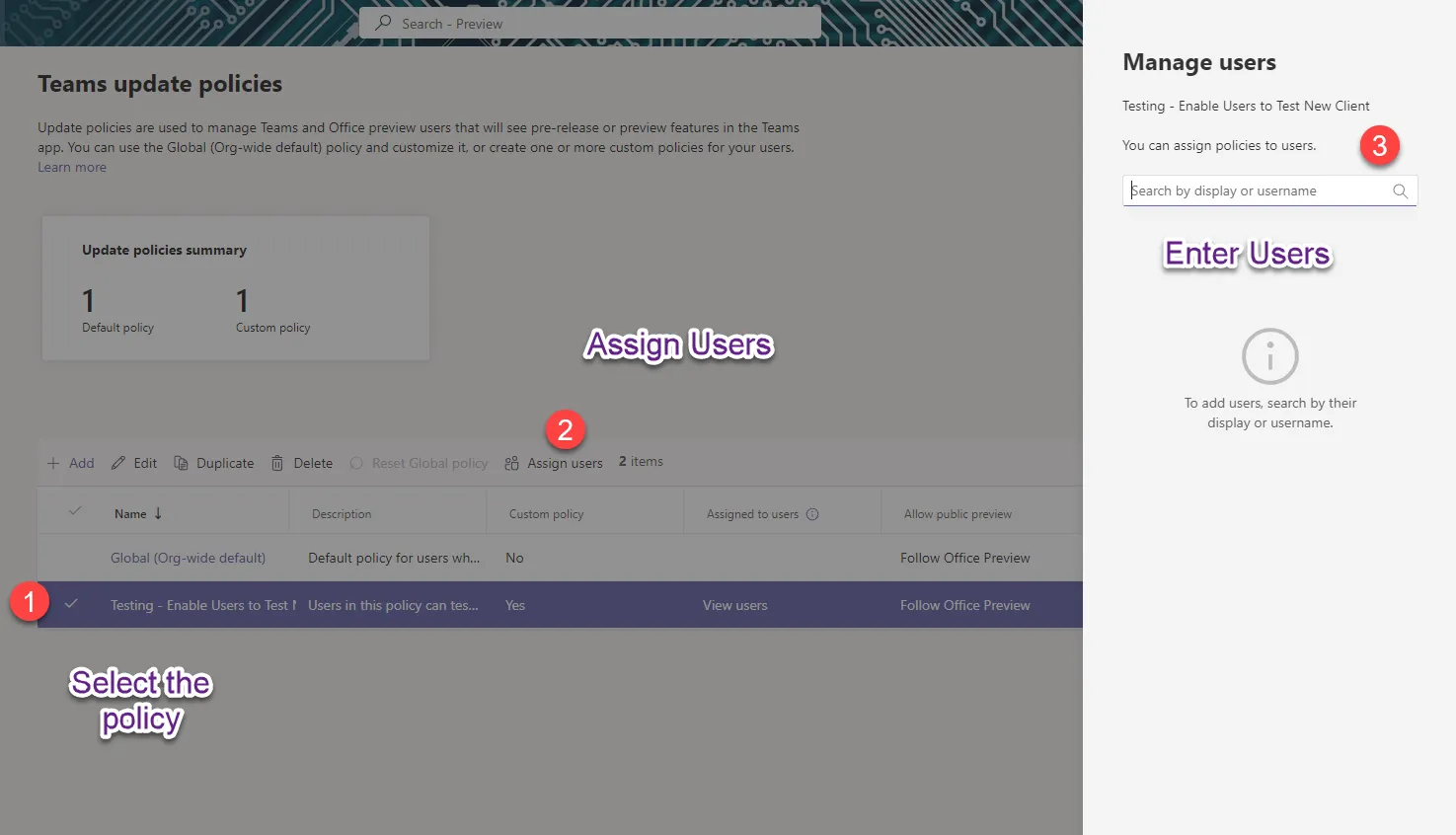
Once you’ve done this hit save at the bottom, and apply the policy to a few users.
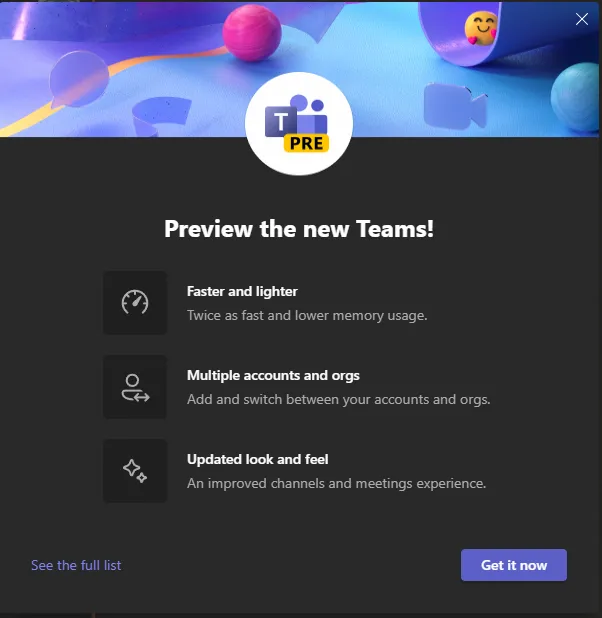
After a short period of time, users will see a prompt in the top left hand corner of their Teams Instance that allows them to toggle preview on and off.

Flipping the toggle will prompt users to “get it now” after which they will move to the new Teams client, and all of the wonderful features that includes.
Happy Testing.
Comments
Comments are GitHub Discussions, loaded on request.